Links mostly survive a merge in ClueTrove’s Merge PDF tool. Bookmarks do not, and neither does the structure of a fillable form.
Internal links were re-pointed to the right page of the merged file, and external links stayed unchanged. Form fields keep their look but may stop being fillable.
The short answer
- Internal links: kept, and re-pointed to the right page of the merged file. A link stays inside its own source file. No link is created between two different files, and in our tests none pointed from one file into another. A link whose target page is not in its own file is removed.
- External links: kept. The web addresses stayed exactly as they were.
- Bookmarks (outline): lost. The merged file had no outline.
- Fillable form fields: the structure is lost. Fields look the same on the page, but the tool warns they may no longer be fillable. If you need a fillable form, do not merge it with this tool.
What does the tool tell you before and after a merge?
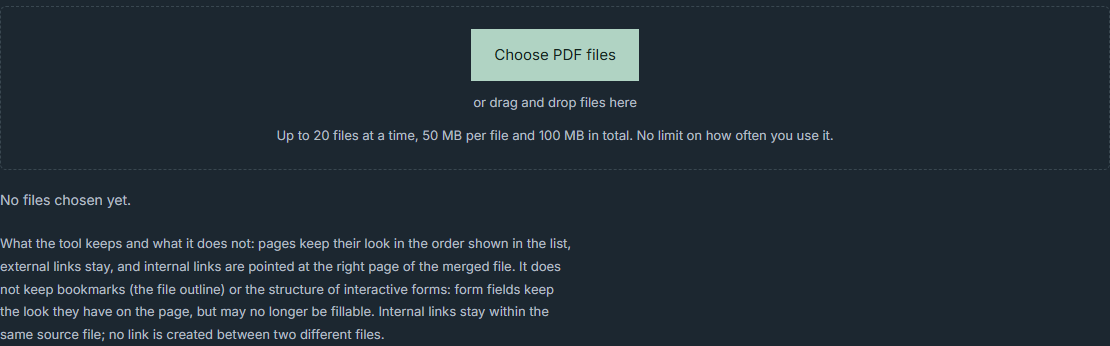
It states its behavior before you choose any file. The page reads: “What the tool keeps and what it does not: pages keep their look in the order shown in the list, external links stay, and internal links are pointed at the right page of the merged file. It does not keep bookmarks (the file outline) or the structure of interactive forms: form fields keep the look they have on the page, but may no longer be fillable. Internal links stay within the same source file; no link is created between two different files.”
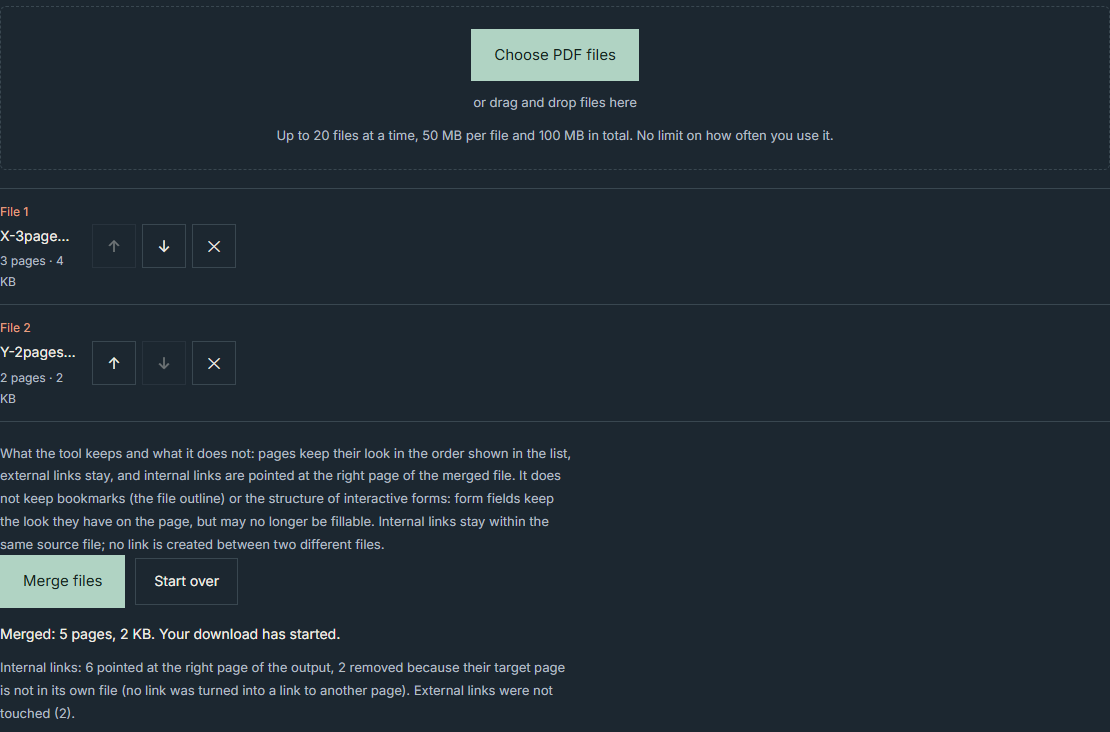
After you merge files that contain links, a separate note counts them. For example: “Internal links: 6 pointed at the right page of the output, 2 removed because their target page is not in its own file (no link was turned into a link to another page). External links were not touched (2).”
If the tool cannot read a file’s links, it warns instead: “The internal links of one or more files could not be checked, so internal links in the output may not work.” Treat that warning as a real alarm.
How do I merge and check the result?
- Select Choose PDF files and pick the PDFs you want to merge.
- Check the order in the list. Pages keep their look in that order.
- Select Merge files.
- Read the confirmation line, for example “Merged: 5 pages, 2 KB. Your download has started.”
- If your files contain links, read the links note. It shows how many internal links were re-pointed and how many were removed.
- If you see the warning that links could not be checked, assume the internal links in the output may not work.
- Select Start over before your next merge. In the tests, this hid the links note.
Which files should you merge with this tool, and which not?
- Merge freely: reports, contracts or articles whose links are web addresses or jumps within one file.
- Check first: files with many internal links. Compare the removed count in the note against what you expected.
- Do not merge: a long document that relies on its bookmark panel for navigation. The panel will be empty.
- Do not merge: a form someone must fill in later. Fill it first, or keep it as a separate file.
What did our tests show?
These are results of ClueTrove’s own tests of its tool.
- Tool version: Merge PDF live build 1.6.5.
- Test date: 2026-10-10.
- Setup: a local copy of the files fetched from tools.cluetrove.com, served from 127.0.0.1 with every outside request blocked. The live pages were not driven in a browser.
- Browser: headless Microsoft Edge 154.0.4258.62 on Windows 11, driven by playwright-core 1.63.0.
- Test files: small synthetic PDFs written by script with pdf-lib 1.17.1.
- Checks: each merged file was read back independently with pdf-lib 1.17.1 and pdfjs-dist 6.4.299, not with the tool itself.
The results apply to these inputs only.
- T1, the page states what it keeps. On the English and Arabic pages, the paragraph quoted above was visible at 1280 px and 390 px wide, with no horizontal scroll. The links note stayed hidden until a merge had run (2 of 2 pages).
- T2, internal links follow their pages. We merged two files with links. File X has 3 pages. Its links include a link to its page 3, an external link, links reached through a destination dictionary, a name tree and a GoTo action, one link to a missing object and one to an undefined name. File Y has 2 pages, with internal links and one external link. We ran four merges: X then Y; Y then X; Y then X again, set by reordering the list; and X, Y, X. In all four, every internal link in the 5-page or 8-page output pointed at the expected page, and external addresses were unchanged. We checked this against a model written beforehand, with both readers: 16 of 16 checks passed. After X then Y, the note reported 6 links pointed, 2 removed and 2 external. After X, Y, X it reported 10 pointed, 4 removed and 3 external.
- T3, bookmarks are not kept. We merged a 2-page file whose outline had two entries (“Chapter one”, “Chapter two”) with another 2-page file. The 4-page output had no /Outlines entry, and pdf.js found no outline. The PDF.js API documentation describes getOutline() as returning a tree outline of the PDF “if it has one”. The first page rendered identically to the source (largest channel difference 0). Both pages gave the same result (2 of 2).
- T4, form structure is not kept, but its look is. We merged a 1-page file with an AcroForm (two widget annotations on page 1) with a 2-page file. The 3-page output had no /AcroForm entry, but the two widgets were still on page 1. The first page rendered identically to the source (largest channel difference 0). Both pages gave the same result (2 of 2).
- T5, unreadable links. We merged a file whose /Annots entry is not an array. The merge still produced a 3-page output, and the page showed the “could not be checked” warning (2 of 2 pages).
- T6, when the note appears. The links note was hidden after merging two files without links. It appeared after merging files with links and was hidden again after Start over (2 of 2 pages).
There were 18 runs in total, 9 per language page. Every run had 0 blocked requests, 0 page errors and 0 console messages. Fourteen runs passed their written expectation. The other 4 (bookmarks and form, on both pages) were recorded as observations without an expectation.
What are PDF forms?
According to the Wikipedia article on PDF, the format supports interactive forms. Two methods coexist in the specification: AcroForms, introduced in PDF 1.2, and XFA forms, introduced in PDF 1.5. Our form test used an AcroForm. The PDF.js documentation says getFieldObjects() returns AcroForm field data, or null when a file has no field data.
What are the limits?
- The test PDFs were small synthetic files. We merged no scanned, tagged, signed, AES-encrypted or very large real-world PDFs.
- Outputs were read back with pdf-lib and pdf.js only. Clicking links, using bookmarks and filling fields in a real viewer were not tested.
- Only the internal link types in T2 were tested: destination, named destination from a dictionary and from a name tree, and GoTo action. Remote-file links, launch actions, JavaScript actions and page labels were not.
- “Removed” means the tool dropped a link whose target page is not in its own file. The T2 outputs matched a model in which no link points from one source file into another.
- Bookmarks were tested with one file (two entries) and forms with one file (two widgets). Other structures may behave differently.
- The English and Arabic pages gave the same results for all 9 test types. The Arabic links note keeps the shipped count wording.
Not covered: whether a merged file can be filled or signed afterwards, any security or privacy guarantee, drag and drop, phones, other browsers, screen readers, JavaScript-disabled behavior and repeat-run flakiness.
Related tools
If your files rely on links rather than bookmarks or fillable fields, merge them with ClueTrove’s Merge PDF tool. After each merge of files that contain links, read the links note to see what changed.
Questions and answers
Will I lose bookmarks when I merge PDFs?
Yes. The tool does not keep bookmarks (the outline). In our test, a file with two outline entries produced a merged file with no outline.
Do links still work after merging PDF files?
Internal links were pointed at the right page of the merged file, and external links were unchanged, as read back with pdf-lib and pdf.js. Check the links note after each merge for the removed count.
Why are my merged PDF form fields not fillable?
The tool does not keep the structure of interactive forms. In our test the merged file had no AcroForm entry, so the fields remain as drawn shapes on the page. Fill the form before you merge.
Why were some internal links removed?
A link is removed when its target page is not in its own source file. The tool creates no link between two different files, so such a link has nowhere valid to go.
What if I see “internal links could not be checked”?
Assume internal links in that output may not work. The merge itself still completes, as in our T5 test, so test the links before you share the file.