Use a converter that reads your files inside the browser, such as ClueTrove’s JPG to PDF converter that runs in your browser. Pick up to 10 JPGs, set the order, choose a page size and select Create PDF. You can check for uploads yourself in under a minute.
The short answer: steps to turn JPGs into one PDF
- Limits: up to 10 images at a time, 10 MB per image and 50 MB in total.
- Page sizes: A4 or Same as image. There is no US Letter option.
- Quality: in our test, standard JPEGs were embedded byte-for-byte, so the PDF was only 0.28% larger than the images.
- Privacy: the page says nothing is uploaded. You can verify that in Chrome DevTools.
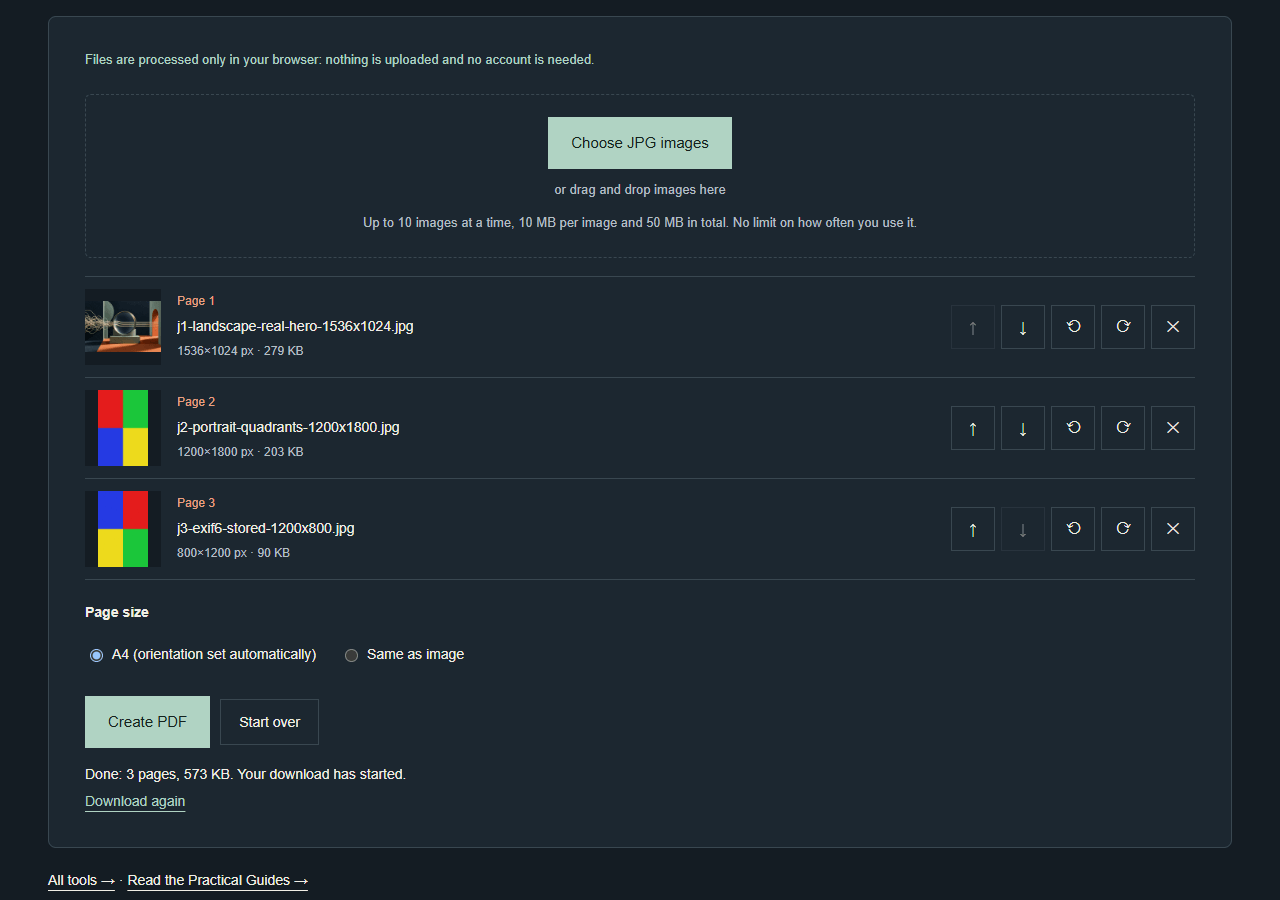
These steps work for a single photo or for combining several JPGs. Each image becomes one page, in the order you set.
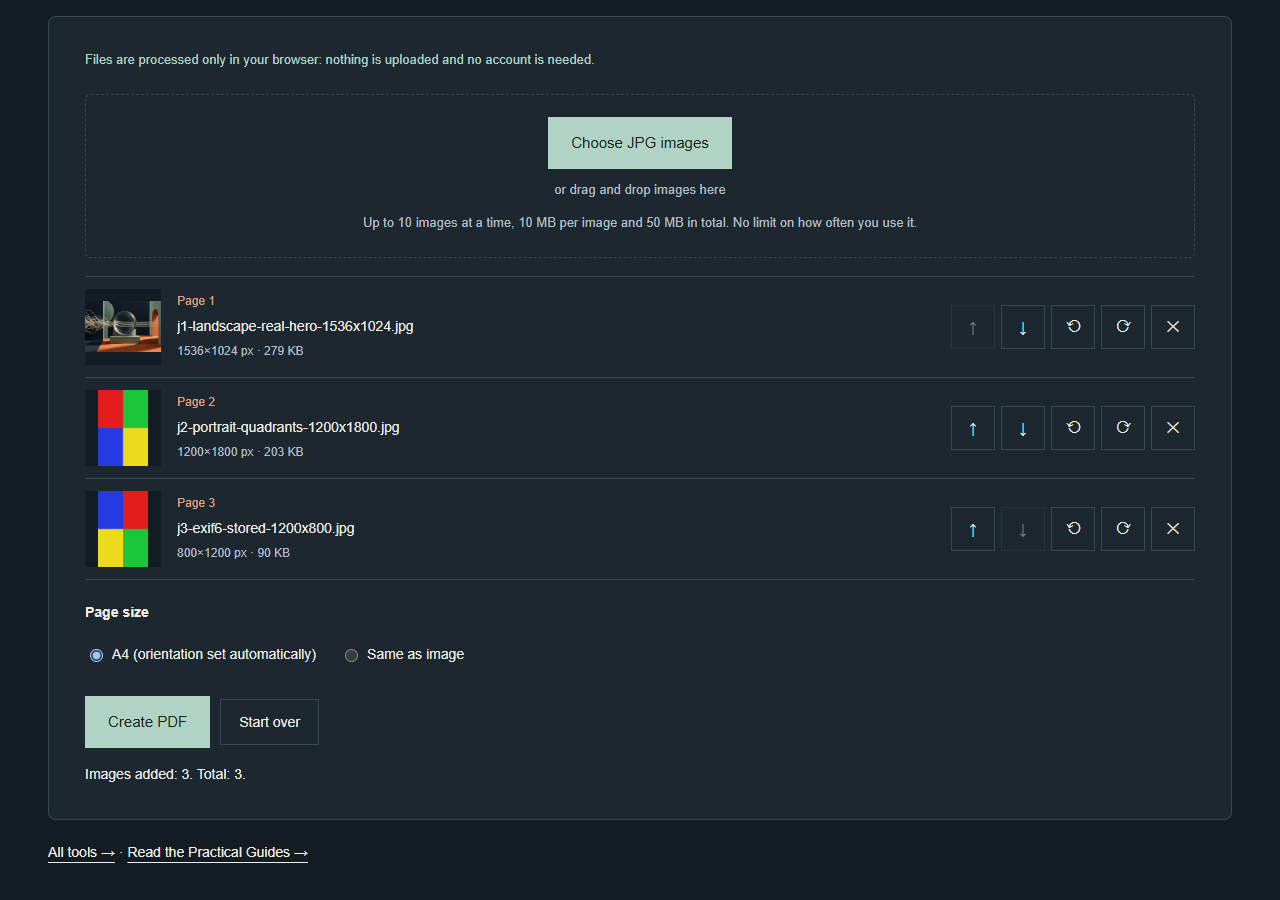
- Open the JPG to PDF tool and select Choose JPG images.
- Pick your JPG files. The page notes: “Up to 10 images at a time, 10 MB per image and 50 MB in total. No limit on how often you use it.”
- Read the status line, for example “Images added: {n}. Total: {t}.” Any refused files appear under “These files were not added:” with a reason.
- Use Move up or Move down to put the images in page order.
- Use Rotate left or Rotate right on any image that faces the wrong way.
- Use Remove to take out an image you don’t want.
- Under Page size, choose A4 (orientation set automatically) or Same as image.
- Select Create PDF. When it finishes, the status reads “Done: {t} pages, {s}. Your download has started.”
- If the file didn’t arrive, select Download again. To build a new PDF from scratch, select Start over.
The page also offers “or drag and drop images here” as another way to add files. Our test didn’t cover drag and drop.
Can a web page read your images without uploading them?
Yes, the web platform allows it. According to MDN, with the browser’s File API a web page can ask you to pick local files and then read their contents. You pick the files with a file input or by drag and drop. MDN also explains that FileReader can only read files you have explicitly selected. A page can’t use it to read a file from your computer by its path. A page can also create a URL that points to a selected local file, which is how thumbnails can appear without an upload.
The PDF format itself supports JPEG images. Adobe’s original PDF Reference lists the DCTDecode filter, which decodes image data using a technique based on the JPEG standard. Whether a converter keeps your JPEG data as it is or re-compresses it depends on the tool.
These documents describe what browsers can do. They don’t prove that any particular site avoids uploading your files.
How do you check that nothing is uploaded?
The JPG to PDF page states: “Files are processed only in your browser: nothing is uploaded and no account is needed.” Test that claim in Chrome. Chrome’s documentation describes the DevTools Network panel as a way to see whether resources are actually being uploaded or downloaded.
- Open DevTools and switch to the Network panel before you select any images. It records only while it is open.
- Add your files and create the PDF.
- Scan the request list. A converter that stays local shows no request carrying your images.
This is a check you can do yourself, not a guarantee. Chrome’s docs don’t say the panel catches every possible way data could leave a page, and the DevTools layout changes over time.
What we tested
These results come from ClueTrove’s own test of its tool, run on 2026-10-05 on a local copy of the tools build, not on the live site.
- Build: 1.3.0, with tool code as in 1.2.0. The tool script jpg-to-pdf.js is byte-identical in the current build 1.3.4.
- Browser: Microsoft Edge 154.0.4258.48, headless, on Windows.
- Phone-size run: the 390×844 run used desktop Edge with mobile emulation.
- Test files: synthetic images plus one project-owned illustration. They say nothing about typical phone photos or scans.
Other files can give different results. These numbers describe our test inputs and are not promises.
What page size should you pick?
We converted three JPEGs with A4 (orientation set automatically):
- a 1536×1024 illustration
- a synthetic 1200×1800 portrait image
- a synthetic image stored as 1200×800 with EXIF orientation 6, shown as 800×1200
The PDF had 3 pages of 841.89×595.28, 595.28×841.89 and 595.28×841.89 points. The landscape image got a landscape page and the other two got portrait pages. The status line read “Done: 3 pages, 573 KB. Your download has started.” All four colour quadrants of every page matched the source, and the image boxes matched the expected margin box within 1.5 points.
Choose A4 for documents you will print or send. It uses a fixed 10 mm margin (28.35 points), and the orientation follows the shape of the displayed image. It also scales small images up: a 48×32 pixel JPEG was drawn 785.0 points wide on an 841.89 x 595.28 point page, an effective 4.4 pixels per inch.
Choose Same as image to keep each image at its own size. The page size is the displayed pixels x 0.75 points (96 pixels per inch), with no margin. The same three images gave pages of 1152×768, 900×1350 and 600×900 points. A 5000×3000 pixel JPEG gave a 3750 x 2250 point page (52.08 x 31.25 inches), so large photos produce very large pages.
Does converting hurt file size or quality?
Mostly no. The three input JPEGs totalled 585,448 bytes, and the PDF was 587,099 bytes. That is 1,651 bytes more, or 0.28 %. The original JPEG streams were embedded byte-for-byte (equal SHA-256 hashes), so the tool wrapped the JPEG data instead of recompressing it. For five noise JPEGs of 8,781,623 bytes each, the PDF was 43,910,731 bytes, only 2,616 bytes more than the files together.
We also converted other JPEG variants one at a time:
- A progressive JPEG and a grayscale JPEG were embedded unchanged.
- A CMYK JPEG was re-encoded: 81,371 bytes became 37,474 bytes of image data, stored as RGB. CMYK colour is therefore only as good as the browser’s own decoding.
- A JPEG cut off at 70 % of its length was refused with “the image could not be opened”.
Do rotation and order work?
Yes. We converted eight JPEGs with identical pixels and EXIF orientation values 1 to 8, including the four mirrored ones, in both page-size modes. 16 of 16 pages showed the expected colour layout.
Rotate right on a portrait image gave a landscape A4 page with the colours turned 90 degrees clockwise. Rotate left on a landscape image gave a portrait page. The order set with Move up and Move down became the page order. The status messages were:
- “Image rotated 90°.”
- “Image rotated 270°.” (Rotate left is reported as 270)
- “Image moved to position 2.”
- “Image removed. 2 in total.” (after Remove)
- “All images removed.” (after Start over)
What does the tool refuse?
The tool checks file contents, not file names. A PNG renamed .jpg, a real .png, a JPEG header followed by random bytes and a GIF were all refused with “not a valid JPG file”. In a mixed batch of four files, the two JPEGs were added (“Images added: 2. Total: 2.”) and the other two were listed under “These files were not added:”. The PDF then had 2 pages.
We also tested the limits:
- Adding 11 tiny JPEGs at once gave “Images added: 10. Total: 10.” The 11th was refused (“over the 10-image limit”), and the 10 accepted images became a 10-page PDF.
- A 17,516,325-byte JPEG was refused (“larger than 10 MB”).
- The same 8,781,623-byte JPEG selected six times gave 5 accepted and the 6th refused (“total size would exceed 50 MB”).
- A 5000×3000 pixel JPEG selected three times gave 2 accepted and the 3rd refused (“total image size would exceed 40 megapixels”).
In the code, the limits are 10 images, 10 x 1024 x 1024 bytes per image, 50 x 1024 x 1024 bytes in total and 40 million pixels in total. “MB” in the messages therefore means 1,048,576 bytes.
How fast is it?
These were single runs and are indicative only. It took 63 ms from the click to the “Done” status for the three-image PDF. For five JPEGs of 8,781,623 bytes each (41.87 MiB in total), it took 470 ms.
One wording quirk
A one-image conversion reports “Done: 1 pages, 81 KB.” because the message uses “pages” for every count.
What are the limits?
- Up to 10 images at a time, 10 MB per image and 50 MB in total. The tool counts MB as 1,048,576 bytes. All images together can be at most 40 megapixels.
- Only JPG files are accepted. The tool recognises them from the file contents, not the extension.
- Page size is A4 (orientation set automatically, fixed 10 mm margin) or Same as image (displayed pixels x 0.75 points, no margin). There is no margin, paper-size or orientation setting, and no US Letter option.
- Before you create the PDF, you can rotate each image left or right, move it up or down, or remove it.
- In our tests the original JPEG data was embedded without recompression. The exception was a CMYK JPEG, which the tool re-encoded.
- Not tested: the deployed site at tools.cluetrove.com, which sits behind a login (only a local copy was tested); drag and drop, the Cancel button during PDF creation, and the exact boundary values of the 10 MB, 50 MB and 40 megapixel limits; opening the PDFs in Acrobat, Preview or browser PDF viewers, and printing them (we checked them with pdf-lib for structure and pdf.js for rendering); real phone photos, real camera EXIF data, ICC colour profiles, and 12-bit, arithmetic-coded or lossless JPEGs; scans of documents; the Arabic page, Firefox, Safari and real mobile devices.
Are there built-in alternatives?
Chrome’s Save as PDF
Google’s Chrome Help explains how to print from Chrome on a computer:
- Open the page, image or file you want to print.
- Choose File > Print, or press Ctrl + P (Windows and Linux) or ⌘ + P (Mac).
- Select a destination in the window that appears.
The same help page refers to a “Save as PDF” option. It doesn’t explain how to combine several JPGs into one multi-page PDF, and Chrome’s labels and shortcuts can change between releases.
Preview on a Mac
Apple says its Preview app can open documents and photos and combine or split PDF files. Apple’s guide describes combining PDFs. It doesn’t describe turning several JPGs directly into one PDF, and menu labels depend on your macOS version.
What should you do next?
- Sort your JPGs so none is over 10 MB and the batch is 10 images or fewer. For more, make two PDFs.
- Pick A4 for printing or sharing, and Same as image to keep each photo at its own size.
- Rotate sideways images before you press Create PDF.
- Open DevTools first if you want to confirm that nothing is uploaded.
- Need Letter-size pages? This tool cannot make them.
When your JPGs are ready, open the browser-based JPG to PDF tool and follow the steps above.
Related tools
- Merge PDF: join the PDF you just made with other PDF files.
- Image Compressor: work on your image files before you convert them.
- All ClueTrove tools: browse the full list.
Questions and answers
Can I combine multiple JPGs into one PDF?
Yes. You can add up to 10 JPG images at a time, and each becomes one page in the order you set with Move up and Move down. In our test, 10 accepted images became a 10-page PDF.
Can I make US Letter pages?
No. The only page size choices are A4 (orientation set automatically) and Same as image. There is no Letter, margin or orientation setting.
Does converting reduce my photo quality?
In our test, standard, progressive and grayscale JPEGs were embedded byte-for-byte without recompression. A CMYK JPEG was re-encoded as RGB. That was our test on synthetic files, so yours may behave differently.
Can I convert PNG or GIF files?
No. The tool checks file contents. In our test, PNG files (including one renamed .jpg) and a GIF were refused with “not a valid JPG file”.
Why was my last photo refused?
You hit a limit: 10 images, 10 MB per image, 50 MB in total or 40 megapixels in total. The refusal message names which one.
Does it work on a phone?
We tested a phone-sized 390×844 view using mobile emulation in desktop Edge, and the tool worked there. Real mobile devices, Firefox and Safari were not tested.
Terms in plain language
- EXIF orientation: a tag in a photo that tells apps which way is up.
- CMYK: a print colour mode. Screens use RGB, so the tool converts CMYK images.
- Megapixel: one million pixels. The tool caps the total across all images at 40.
- Point: a PDF length unit. A4 is 595.28 by 841.89 points.