Scan a QR code by opening the Camera app, holding the iPhone over the code and tapping the link that appears. Scan a document in Notes (Attachment button, Scan Documents) or in Files (More, Scan Documents), then tap Keep Scan and Done. Neither needs an extra app.
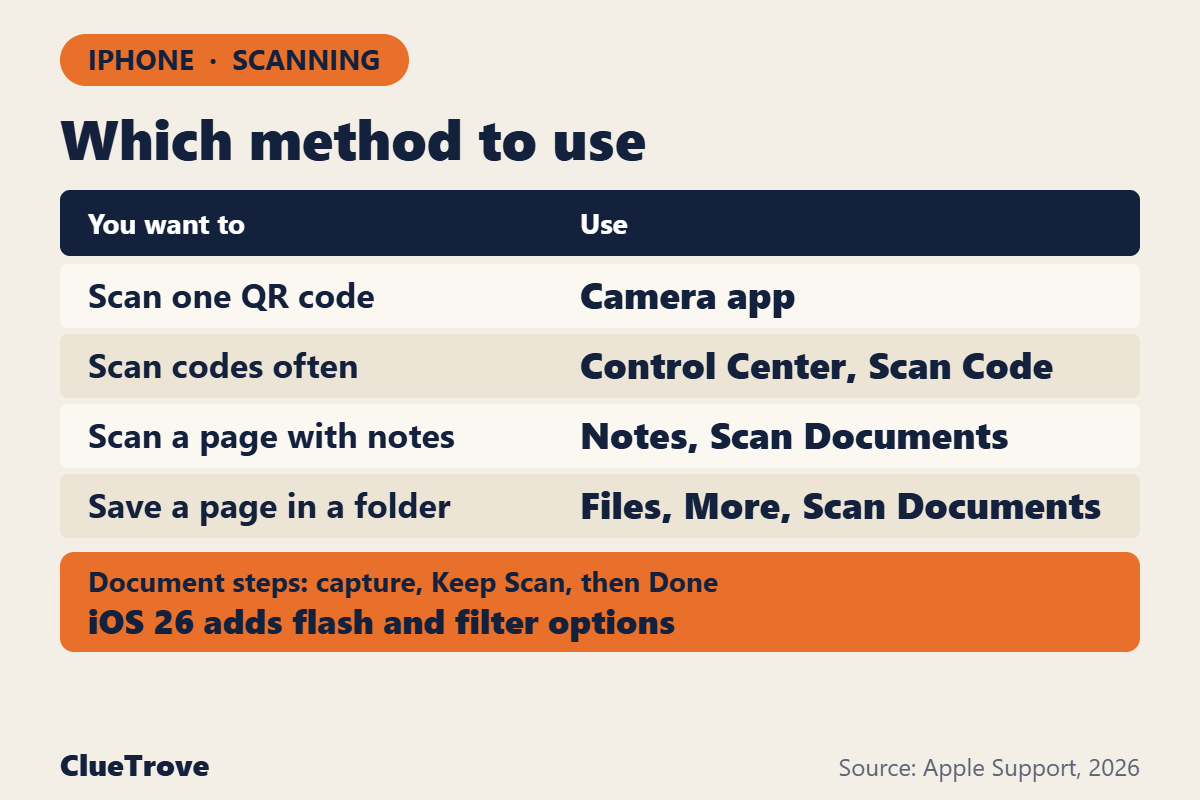
Which method to use
| You want to | Use |
|---|---|
| Scan one QR code | Camera app |
| Scan codes often | Control Center button |
| Scan a page with notes | Notes |
| Save a page in a folder | Files |
Scan a QR code
- Open the Camera app from the Home Screen, Lock Screen or Control Center, or use the Camera Control on supported models.
- Hold the iPhone so the QR code appears on screen.
- Tap the link or notification that appears to open the content.
Prefer one tap? Open Control Center and tap the Scan Code button. To add it, open Control Center, touch and hold the background of the screen, tap Add a Control, choose Scan Code in the gallery, then tap anywhere to return.
Scan a document in Notes
- Open Notes and select a note or create a new one.
- Tap the Attachment button, then Scan Documents.
- Place the page in view of the camera. In iOS 26 you can also choose options such as flash or an image filter.
- In Auto mode the page scans by itself. To capture manually, tap the Shutter button or press a Volume button. Then drag the corners to fit the page and tap Keep Scan.
- Tap Done, or add more scans to the same document.
In an open note you can also tap the More button, then Scan.
Scan a document in Files
- In the Files app, tap the More button, then Scan Documents.
- Capture the page the same way: Auto mode, or the Shutter or a Volume button, then Keep Scan.
- Tap Done, or add more scans.
- Choose a location and tap Save.
Choose Notes when the scan belongs next to other text, such as a receipt beside a list of expenses. Choose Files when you want a standalone scan in a folder you pick.
Quick answers
Do I need an app to scan a QR code?
No. The Camera app and the Control Center Scan Code button are built in.
Where does a scanned document go?
Into the note you used in Notes, or into the location you choose in Files before you tap Save.
Can I scan several pages into one document?
Yes. After each capture, add another scan, then tap Done.
What changed in iOS 26?
Apple lists flash and image filter options at the scan step.
Related reading
- Current iPhone Lineup and US Prices, From iPhone 17 to Duo
- Arabic OCR Study: Datalab, Azure and Document AI Error Rates
- GitHub Copilot HydraFusion Max: What Is Documented
Sources
- Apple Support: Scan a QR code with your iPhone or iPad, 14 September 2026
- Apple Support: How to scan documents on your iPhone or iPad, 13 February 2026
Updated 18 November 2026.