Open ClueTrove’s Split PDF tool for separating pages in your browser, choose “Make every page a separate file (up to 300 pages)” and press “Split file”. The parts can add up to far more than the original, because shared images and resources are copied into every file.
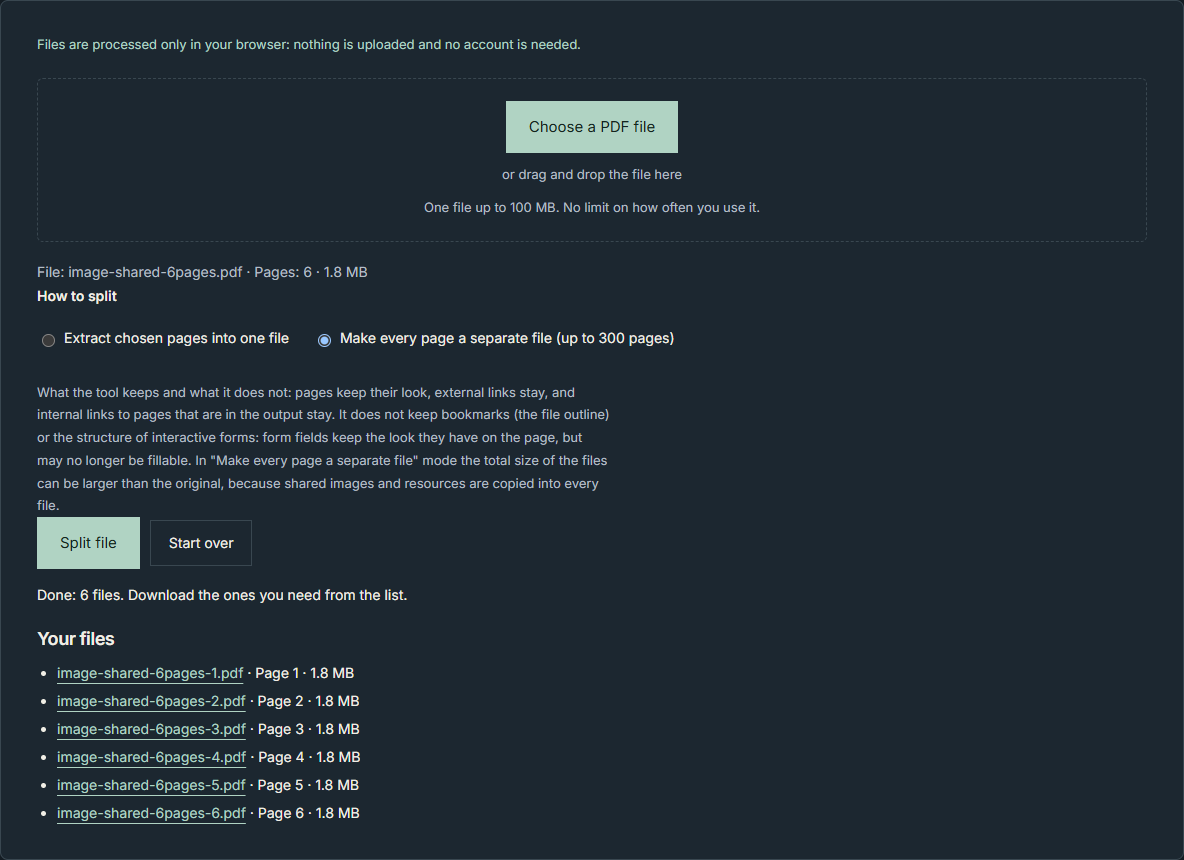
In our worst test, six pages sharing one image gave 5.99 times the source size.
The short answer
- Shared image: the picture is copied into every file. The total balloons.
- Different images or text only: the total stays close to the source, or shrinks.
- Few pages needed: use extract mode. It makes one file and avoids extra copies.
- Over 300 pages: one-file-per-page mode refuses the file. Page ranges still work.
How do I make one file per page?
- Press “Choose a PDF file” and pick your PDF. The page says “One file up to 100 MB. No limit on how often you use it.”
- Under “How to split”, select “Make every page a separate file (up to 300 pages)”.
- Press “Split file”. The status shows “Preparing file 1 of 6…” and counts up to the last page.
- Wait for “Done: 6 files. Download the ones you need from the list.” The number matches your page count.
- In the list titled “Your files”, click each file you want to download.
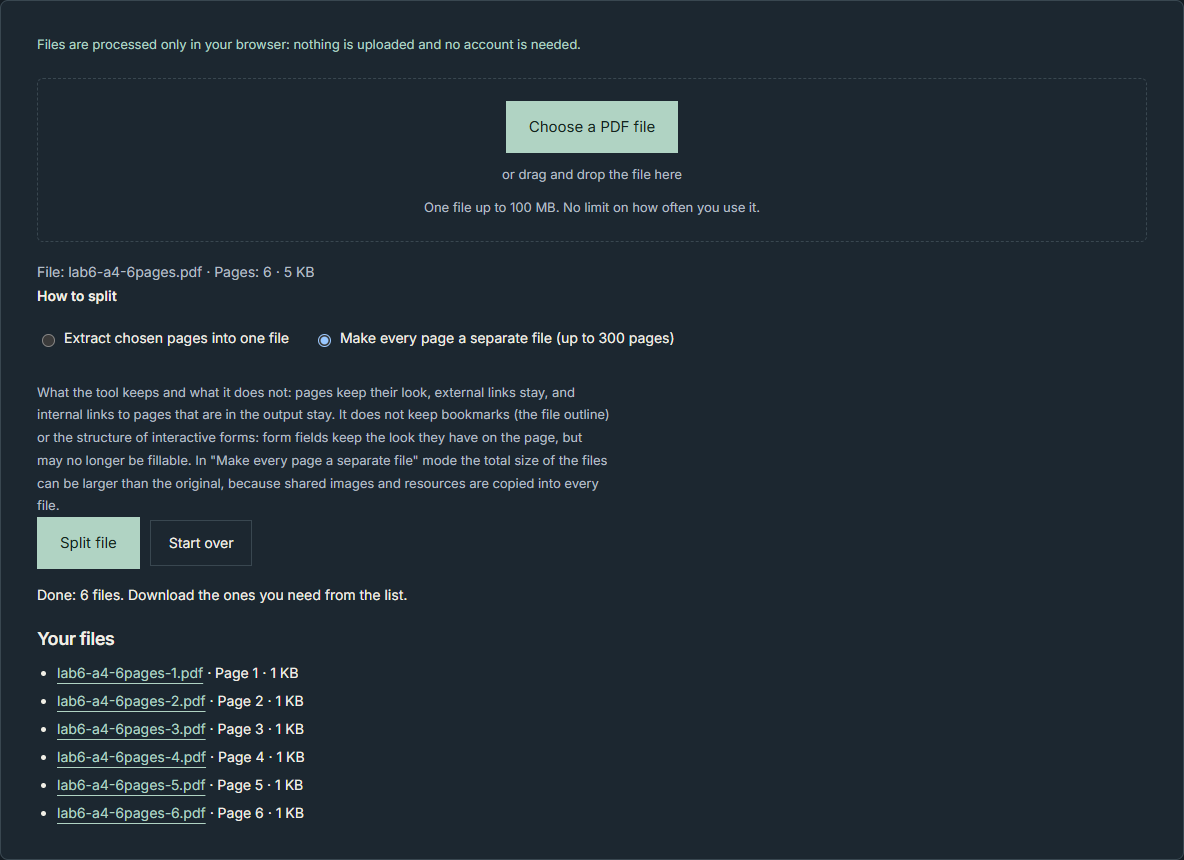
In this mode nothing downloads by itself. You pick files from the list. Each entry shows the name, the page number and the size, for example “lab6-a4-6pages-1.pdf · Page 1 · 1 KB”.
How do I keep only some pages in one file?
- Press “Choose a PDF file” and pick your PDF.
- Under “How to split”, select “Extract chosen pages into one file”.
- Type the pages you want, for example 1-3, 301.
- Press “Split file”. You get one file and its download starts by itself (“Done: one file with 4 pages, 2 KB. Your download has started.”).
What are the files called?
- One-file-per-page mode: original name–number.pdf. The number is padded to the digits in the page count. A 6-page file gives -1 to -6. A 300-page file gives -001 to -300.
- Extract mode: original name-pages.pdf.
- A one-page PDF in one-file-per-page mode gives a single file named original name-pages.pdf, and its download starts by itself, as in extract mode.
- The base name is the original name without .pdf. Each run of the characters \ / : * ? ” < > | becomes one underscore. The name is cut to 80 characters, and becomes “document” if nothing is left.
Why can the separate files be bigger than the original?
PDF is an international standard. Its latest published edition is ISO 32000-2:2020 (PDF 2.0), which defines a digital form for exchanging and viewing documents in any environment. According to the PDF Association, this second edition was published in December 2020. It replaces the 2017 edition and continues the format Adobe first published in 1993.
Under that standard, each page has a Resources dictionary listing the resources its content uses. When several pages need exactly the same set, they may share one Resources dictionary. Sharing is optional, so a given file may or may not use it. The standard’s own example shows a resource dictionary holding fonts and external objects (XObjects).
The tool’s note says: “In ‘Make every page a separate file’ mode the total size of the files can be larger than the original, because shared images and resources are copied into every file.” Our test shows it. One image shared by six pages ended up as a full copy inside each of the six files.
When should you split per page, and when not?
- Split per page: when you need to send or file pages one by one. Download only the pages you need from the list.
- Extract instead: when you need a few pages together. You get one file and one copy of any shared image. Extracting only page 1 of the image-heavy test file gave 1,921,637 B, one copy of the image.
- Watch out: photo-heavy documents with a repeated logo or background. Those are the cases that balloon. Check the sizes in the list before you send.
What did our test show?
These are results of ClueTrove’s own test of its Split PDF tool on 2026-10-07. The tool was live build 1.5.5, first run on 1.5.3, and the whole suite was re-run unchanged on 1.5.5 with the same decisions. We tested a frozen local copy of the live files served from 127.0.0.1 with every outside request blocked, not the deployed site. The browser was headless Microsoft Edge 154.0.4258.48 on Windows, on the English and Arabic pages. We used only synthetic test files, so none of these numbers is a promise.
- Six-page file, one file per page: the status counted “Preparing file i of 6…” from 1 to 6, then showed “Done: 6 files. Download the ones you need from the list.” It took 50 ms in a single run. No download started on its own. Six links appeared, from lab6-a4-6pages-1.pdf to lab6-a4-6pages-6.pdf. Each file held one page, pixel-identical to its source, with the same size and rotation.
- 300 pages: a 300-page file gave “Done: 300 files.” All 300 files rendered pixel-identical to their source pages. Together they were 251,283 B against a 145,309 B source.
- 301 pages: the mode refused the file with “The file has more than 300 pages; extract ranges instead.” Nothing was created. Extract mode still worked: “1-3, 301” gave 4 pages and “1-301” gave 301 pages.
| Test file (one file per page) | Source | Total of parts | Ratio |
|---|---|---|---|
| Six pages sharing one 800×800 image | 1,924,164 B | 11,529,819 B | 5.992x |
| Six pages, six different 400×400 images | 2,885,491 B | 2,887,192 B | 1.001x |
| Six text-only pages | 21,760 B | 17,433 B | 0.801x |
| Six-page labelled file | 4,972 B | 5,606 B | 1.128x |
In the shared-image case, every part held the full image stream, byte-identical to the source. Three 2-page files reusing one image on both pages gave 1.994x, 1.993x and 1.994x. Text-only pages came out smaller than the source.
- Cancel: during a 300-page run, all 8 cancel attempts ended with “Cancelled. No file was created.” There was no list and no download. Five were scripted cancels at files 1, 2, 150, 299 and 300. Three were real clicks on “Cancel” at about files 40, 40 and 120. A new run after each cancel completed with all 300 links. These are race observations on one machine.
- Speed: single runs on small synthetic files, indicative only. Extracting 3 pages took 49.3, 35.7 and 28.2 ms. Making 300 one-page files took 2,272, 2,200.8 and 2,107.7 ms. In the 1.5.5 re-run the times moved: 28 to 55 ms, and about 1.9 to 2.4 s.
- Phone width: at 390×844 (emulated in desktop Edge) the page did not scroll sideways, even with a 100-character file name. The long name wrapped over several lines.
The byte totals come from the first (1.5.3) run. In the 1.5.5 re-run they differ by 1 to 2 bytes per file because the split time is written into every file. The ratios were unchanged.
What are the limits?
- One file up to 100 MB at a time, with no limit on how often you use the tool. The 100 MB figure comes from the code; no file near that size was tested.
- One-file-per-page mode accepts up to 300 pages. A 301-page file is refused there, but page ranges still work on it.
- Pages keep their look, size and rotation. Bookmarks (the outline), the structure of interactive forms and the document properties are not kept. Title, Author, Subject and Keywords are dropped, Producer and Creator are emptied, and the dates become the time of splitting.
- External links stay. Internal links stay only when their target page is in the output.
- Form fields keep their look but may no longer be fillable.
- The total of the parts can be far larger than the source: up to 5.99x when pages shared an image. No ratio is guaranteed.
- A one-page result reads “one file with 1 pages” on the English page.
- The tool page says files are processed only in your browser, with nothing uploaded and no account needed. No security or privacy audit was done.
Not covered: the deployed site, clicking links in a real PDF viewer, real scanner or office PDFs, filled-in forms, encrypted or large files, other browsers, real phones, printing, drag and drop, screen readers and speed on other machines.
Related tools
To separate pages or pull out a page range, go back to ClueTrove’s Split PDF tool. If you only need a few pages, extract mode keeps them in one file, and in our shared-image test it avoided extra copies of the image.
Questions and answers
Why are my split PDF files bigger than the original?
Pages can share resources such as images. When each page becomes its own file, the shared image is copied into every file. Six pages sharing one image gave parts totalling 5.99 times the source. Text-only pages came out smaller.
Can I split a PDF with more than 300 pages?
Not into one file per page. A 301-page file showed “The file has more than 300 pages; extract ranges instead.” Use “Extract chosen pages into one file” with page ranges. In our test, “1-301” still worked.
What does Cancel do?
It stops the run. Every cancel during a 300-page run ended with “Cancelled. No file was created.” No list appeared and nothing downloaded. A new run afterwards completed normally.
Why did my one-page PDF download right away?
A one-page file gives a single file named original name-pages.pdf, and its download starts by itself, as in extract mode.
Are bookmarks and form fields kept?
Bookmarks are not kept. Form fields keep their look but may stop being fillable, because the interactive form structure is not kept.
How do I avoid a huge total size?
Extract only the pages you need into one file. That keeps one copy of any shared image.