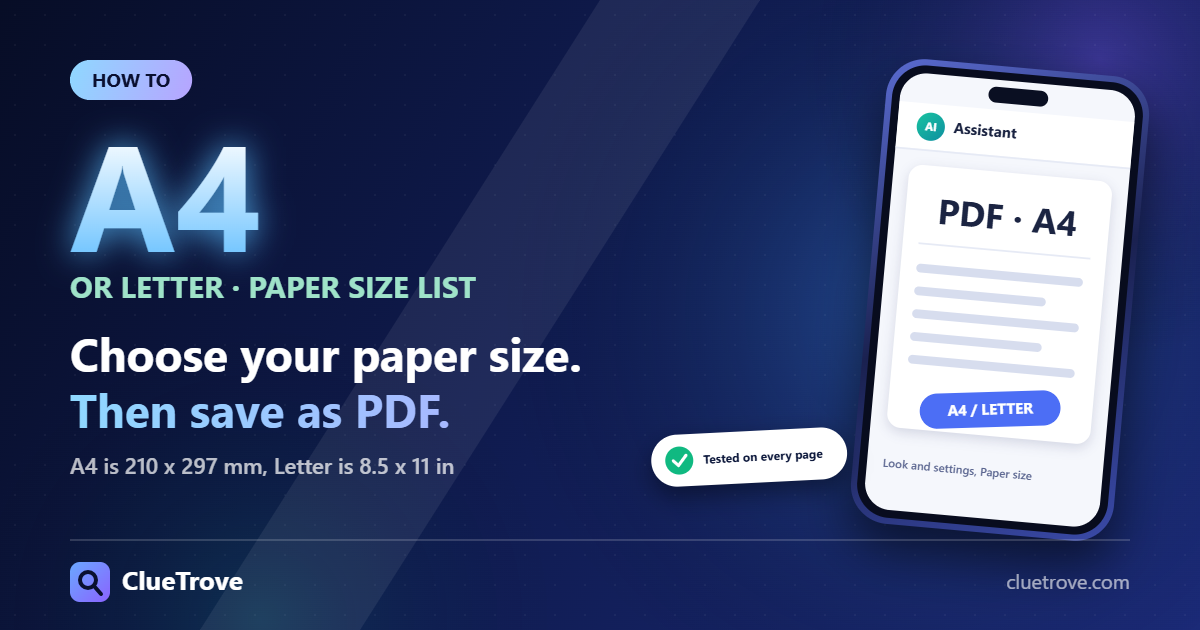
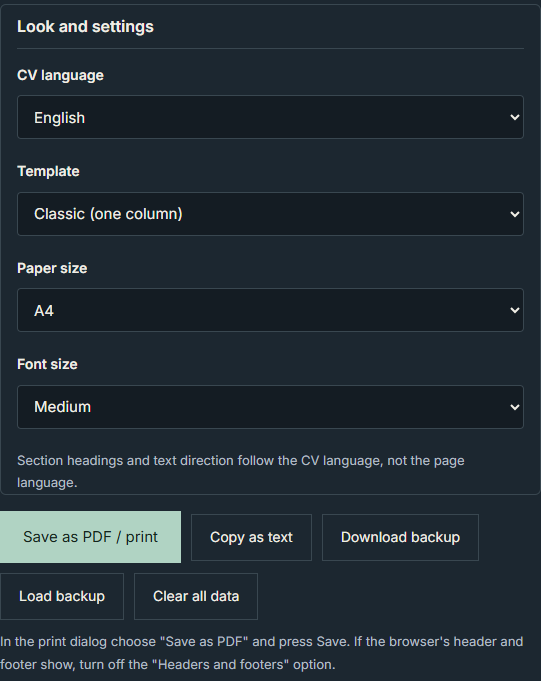
In ClueTrove’s CV Builder for making a printable CV, open “Look and settings” and pick A4 or Letter in the “Paper size” list. Then press “Save as PDF / print” and save the file as a PDF from your browser’s print dialog.
In our tests, A4 came out at exactly 210 x 297 mm and Letter at 8.5 x 11 in, on every page of every PDF.
The short answer: save your CV as an A4 or Letter PDF
- Enter your details. If the form is empty, the print button shows “Nothing to print yet: enter your details first.”
- Open “Look and settings”. It is closed when the page loads.
- In “Paper size”, choose “A4” or “Letter”.
- Optionally, choose a “Template”: “Classic (one column)” or “Modern (two columns)”.
- Optionally, choose a “Font size”: “Small”, “Medium” or “Large”.
- In “CV language”, choose the language of your CV. This sets the section headings and the text direction.
- Check the “CV preview”.
- Press “Save as PDF / print”. The status line reads “The print dialog was opened.”
- In the print dialog, follow the note under the buttons: choose “Save as PDF” and press Save. If the browser shows its own headers and footers, turn off the “Headers and footers” option. The dialog’s paper size, margins and scale settings can also change the result, so check them before you save.
Which paper size should I choose, A4 or Letter?
Letter is North American letter paper. In CSS, the @page size keyword letter is equivalent to 8.5in x 11in. A4 measured 210 x 297 mm in our test.
Match the paper you will print on, or the size the employer asks for. If the employer names none, use the standard for your country. Letter is the North American size. We cannot say which size an employer in any given country expects.
Mistakes that ruin a saved CV
- Saving before choosing the paper size. Set “Paper size” first, then print.
- Leaving headers and footers on. Browser headers add dates and web addresses to every page. Turn them off.
- Wrong CV language. Headings and direction follow “CV language”, not the page language.
- Skipping the preview. Check “CV preview” for page count. A long CV can run 3 or 4 pages.
- Printing an empty form. You will only see “Nothing to print yet”.
What is the print dialog?
Web pages can open the browser’s print dialog for the current document. MDN’s Window.print() documentation notes that if the document is still loading, it finishes loading before the dialog opens. The dialog is your browser’s own, so its options vary by browser.
What did our test show?
These are results of ClueTrove’s own test, on a local copy of the CV Builder, live build 1.6.5. The files were fetched from tools.cluetrove.com and served from 127.0.0.1 with every outside request blocked. The test date was 2026-10-09. The browser was headless Microsoft Edge 154.0.4258.62 on Windows 11. We used Chromium print emulation (page.pdf) after the page’s own print button had put the page in its print state. All inputs were synthetic.
- Settings and button (T1): “Look and settings” holds four lists: “CV language” (العربية / English), “Template”, “Paper size” (A4 / Letter) and “Font size” (Small / Medium / Large). With an empty form, the button created no print layout and showed “Nothing to print yet: enter your details first.” This happened on 2 of 2 pages. Choosing “Letter”, “Modern (two columns)” and “Large” gave a PDF of 612 x 792 points.
- Page size (T2): we made 16 short CVs (1 page each) and 24 long CVs (9 jobs with 6 points each, 24 skills, 3 projects). A4 pages measured 594.96 x 841.92 points (210 x 297 mm) in 20 of 20 PDFs. Letter pages measured 612 x 792 points (8.5 x 11 in) in 20 of 20 PDFs. This held for every page of every PDF. The status line read “The print dialog was opened.” in all 40 runs, in the page’s language.
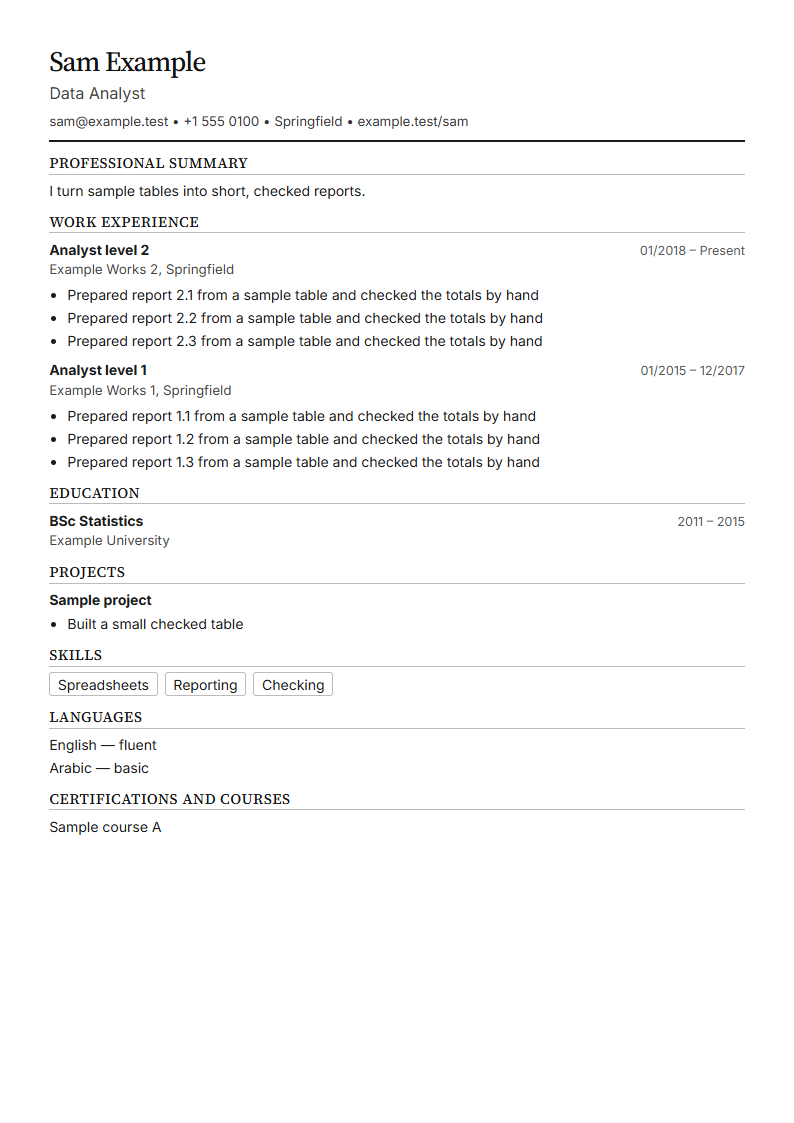
- PDF content (T3): none of the 40 PDFs contained site words such as “ClueTrove”, “Blog”, “Privacy” or “Save as PDF”. Missing typed characters: 0 in 40 of 40 PDFs. That check compared characters, not their order. Each PDF had 8 to 27 extra characters: the separators, dashes and bullet marks the layout adds. In the 20 English-CV PDFs, the text’s left edge sat 12.9 to 13.0 mm from the page edge on every page.
- Right-to-left Arabic CVs (T4): the print layout was right to left (rtl, lang ar) in all 20 Arabic-CV runs, and left to right (ltr, lang en) in all 20 English-CV runs. This held even when the page language differed from the CV language (8 runs). Headings followed the CV language, for example “Work experience” or “الخبرات العملية”.
- Page breaks (T5): all long CVs had 3 or 4 pages. The classic template gave 3 pages in 11 PDFs and 4 pages in 1 PDF (12 runs). The modern template gave 3 pages in 9 PDFs and 4 pages in 3 PDFs (12 runs). In the 20 English-CV PDFs, no section heading was left alone at the foot of a page. We built no CV designed to strand a heading, so this shows only that no case was seen.
- Backup (T6): filling the form from a backup file with “Load backup” worked in all runs. The page states that nothing is saved on the site or in the browser, and that you can download a backup file and load it later. Download one before you close the tab.
What are the limits?
- We tested printing with Chromium print emulation only, not a real Save-as-PDF dialog. That dialog’s paper size, margins, scale and “Headers and footers” can change the result.
- The paper sizes come from named CSS pages (A4 and Letter). The tests show PDF page sizes in emulation, nothing about which size you should use.
- Text checks compare characters, not order. The heading-at-foot check covered English CVs only. We checked Arabic letter order inside a line by eye in screenshots.
- Long-CV page counts belong to our synthetic CV. Font size and template change the count.
- The A4 layout image is a browser screenshot of the print layout at a 794 px window, not a scan of a PDF or paper.
- The CV asks for the fonts Tajawal, then Inter, then Arial. We did not examine which font ended up in each PDF.
Not covered: Chrome, Firefox, Safari and mobile browsers, real phones and tablets, other PDF viewers, applicant tracking systems, screen readers, very long unbroken words or links, JavaScript-disabled use, the live pages, and repeat runs (each suite ran once).
Questions and answers
Where do I choose A4 or Letter?
Open “Look and settings”, which is closed when the page loads, and pick “A4” or “Letter” in the “Paper size” list. Then press “Save as PDF / print”.
How do I stop the browser’s headers and footers from printing?
In the print dialog, turn off the “Headers and footers” option. The note under the buttons reminds you to do this if the browser shows them.
Will an Arabic CV print right to left on the English page?
Yes. Direction follows the CV language, not the page language. Arabic CVs had a right-to-left layout in all 20 runs.
How many pages will my CV be?
It depends on your content, template and font size. Our long synthetic CV (9 jobs, 24 skills, 3 projects) gave 3 or 4 pages. A typical shorter CV will take fewer, and the “CV preview” shows you before you print.
Why does the button say “Nothing to print yet”?
The form is empty. Enter your details, then press “Save as PDF / print” again.
Can I save my CV and edit it later?
Yes. The page saves nothing, so download a backup file and use “Load backup” later to refill the form.