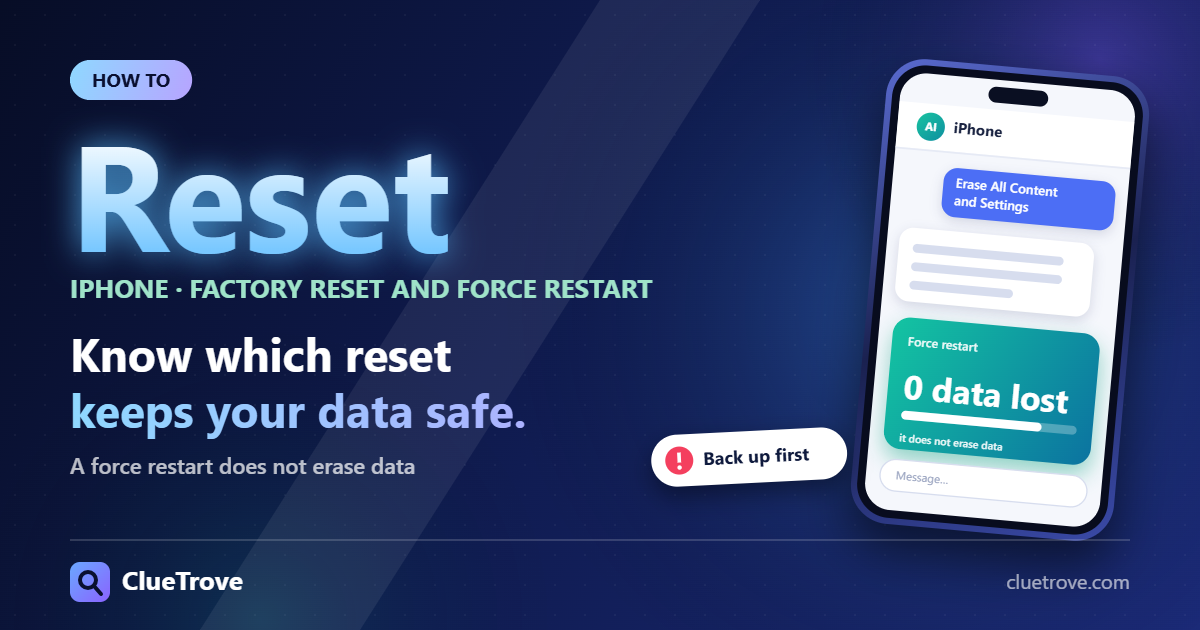
To factory reset an iPhone, back it up, then open Settings, General, Transfer or Reset iPhone and tap Erase All Content and Settings. Apple’s support article, published 5 October 2026, says: “When you tap Erase All Content and Settings, your device is completely erased.”
A network reset and a force restart are much gentler. Neither one touches your photos or apps, and a force restart does not erase data at all.
The short answer
- Factory reset: Settings, General, Transfer or Reset iPhone, Erase All Content and Settings. It wipes the phone.
- Reset network settings: Settings, General, Transfer or Reset iPhone, Reset, Reset Network Settings. It clears connections only.
- Force restart (Face ID models): press and release Volume Up, then Volume Down, then hold the Side button until the Apple logo appears.
Which reset should you use?
Start with the lightest fix. Try a force restart for a frozen screen. Try Reset Network Settings for Wi-Fi, cellular or VPN trouble. Use the factory reset only when you are selling the phone, giving it away, or starting fresh, because it cannot be undone without your backup.
How do you factory reset an iPhone?
- Back up your iPhone first.
- Open Settings, then General, then Transfer or Reset iPhone.
- Tap Erase All Content and Settings, then Continue.
- Choose to keep or delete the eSIM.
- Enter the passcode.
- Wait for the backup step to finish, then enter your Apple Account password.
- Wait for the reset. The Hello screen appears.
Deleting the eSIM means contacting your carrier to reactivate the plan. If you also need to erase an Apple Watch, unpair it first.
What should you do before you sell, trade in or give away your iPhone?
Apple’s separate article lists these steps, in this order:
- Back up the iPhone.
- Unpair the Apple Watch.
- Cancel or transfer AppleCare.
- Sign out of your Apple Account. On iOS 26 or later: Settings, your name, scroll down, Sign Out.
- Check Find My.
- Deregister iMessage if moving to a non-Apple phone.
- Erase All Content and Settings.
- Remove the device from your trusted devices list.
- Optionally remove Apple Pay cards.
The order matters. Signing out and checking Find My before the erase means the next owner is not blocked by your account.
What does Reset Network Settings do?
Go to Settings, General, Transfer or Reset iPhone, Reset, Reset Network Settings. Apple says this removes Wi-Fi networks and passwords, cellular settings, and VPN and APN settings, and recommends it “if other solutions fail.” Afterwards you rejoin each Wi-Fi network and retype its password, so keep those passwords handy.
How do you force restart an iPhone?
| Model | Steps (Apple) |
|---|---|
| iPhone with Face ID | Press and release Volume Up, press and release Volume Down, then hold the Side button until the Apple logo appears (it “might take longer than 10 seconds”) |
| iPhone 7 and 7 Plus | Hold the Side button and Volume Down together until the logo appears |
| iPhone 6s and earlier | Hold the Home button and the side (or top) button together |
If the iPhone will not turn on, Apple suggests charging it for one hour and trying again. A force restart does not erase data. If you use an Apple Watch, see how to unpair and reset it first.
Mistakes to avoid
- Erasing before you back up.
- Releasing the Side button too early. Hold it past 10 seconds if the logo has not appeared.
- Selling the phone without unpairing the Apple Watch or signing out of your Apple Account.
- Deleting the eSIM without a plan to reactivate it with your carrier.
Questions and answers
How do I factory reset my iPhone?
Back up, then go to Settings, General, Transfer or Reset iPhone, Erase All Content and Settings. Follow the prompts until the Hello screen appears.
How do I hard reset an iPhone?
Use the force restart sequence for your model. It does not erase data.
Does resetting network settings delete my data?
No. It removes saved Wi-Fi networks and passwords and cellular, VPN and APN settings, not your photos or apps.
What if my iPhone will not turn on?
Charge it for one hour, then try the force restart for your model.
Do I need my Apple Account password to erase the phone?
Yes. You enter your passcode, then your Apple Account password, after the backup step.
Related reading
- How to Restart, Force Restart and Update an iPhone
- How to Factory Reset a MacBook Air or MacBook Pro
- How to Switch Between iPhone and Android and Reset a Samsung
Sources
- Apple Support: erase iPhone
- Apple Support: what to do before selling, giving away or trading in your iPhone
- Apple Support: reset network settings
- Apple Support: force restart iPhone
Facts last checked on 20 October 2026 against Apple pages dated May to October 2026.