To fix a printer that shows offline in Windows 11, start with the Get Help troubleshooter. If that fails, power-cycle the printer, check the Wi-Fi, clear the print queue, and restart the Print Spooler. To add a printer to a Mac, open System Settings, Printers & Scanners, and click Add Printer, Scanner, or Fax.
The short answer
- Run the Get Help printer troubleshooter.
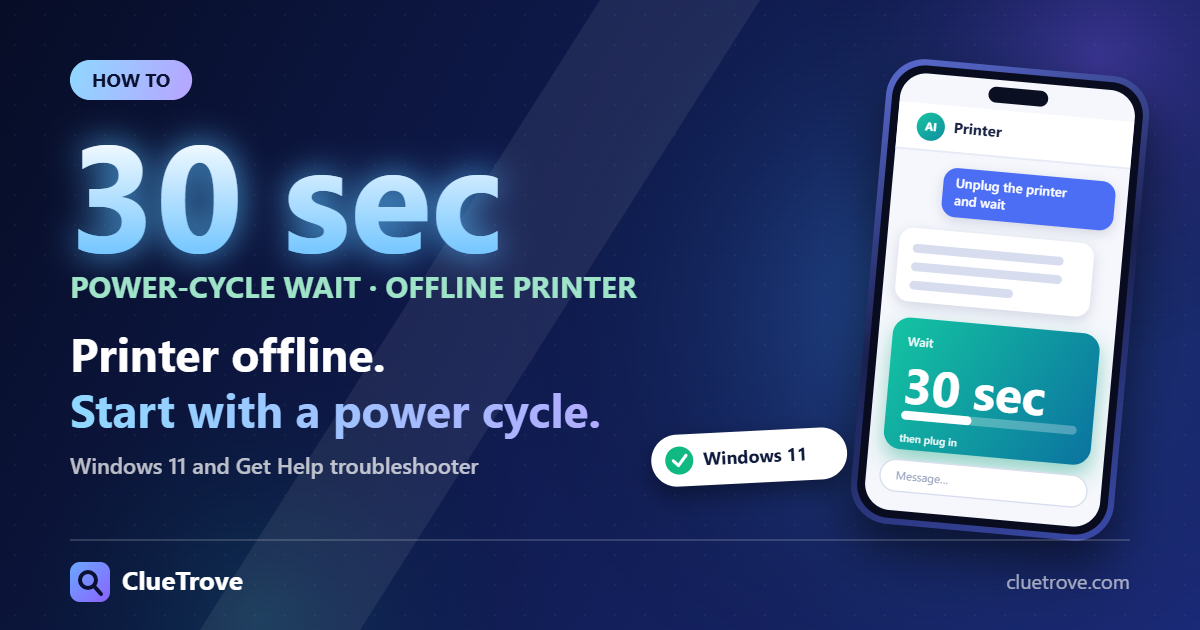
- Power-cycle the printer: off, unplug, wait 30 seconds, plug in, on.
- Check the printer is on the same Wi-Fi as the PC.
- Set it as default: Settings, Bluetooth & devices, Printers & scanners.
- Cancel all print jobs, then restart the Print Spooler.
- Remove and re-add the printer, then restart the PC.
How do you fix “printer offline” on Windows 11?
These are the steps from Microsoft’s support page. Work down the list and test after each one. The early steps fix the most common causes: a lost network connection, a stuck queue and a stopped spooler.
- Run the troubleshooter: open the Get Help app and run the printer troubleshooter. Microsoft recommends starting here.
- Power-cycle: turn the printer off, unplug it, wait 30 seconds, plug it in and turn it on.
- Same network: confirm the printer is on the same Wi-Fi as the PC. The printer’s own menu or manual can show its connection status.
- Default printer: go to Settings, Bluetooth & devices, Printers & scanners, select the printer, then Set as default. If the option is missing, turn off “Let Windows manage my default printer.”
- Clear the queue: open the print queue, select the ellipsis (…), then Cancel all.
- Restart Print Spooler: open Services, right-click Print Spooler, then Restart.
- Re-add the printer: remove it in Printers & scanners, make sure it is on and connected, then choose Add device.
- Restart the PC. This refreshes the services that talk to the printer.
On an ARM PC, such as a Copilot+ PC, the manufacturer’s installer may not work. Add the printer through Windows instead, unless the manufacturer says otherwise.
What about Windows 10?
Microsoft says to use Settings, Devices, Printers & scanners, Open queue, Printer, Set As Default Printer. Then clear “Pause Printing” and “Use Printer Offline,” and use “Remove device” instead of Remove. Microsoft’s page notes Windows 10 support ended on 14 October 2025, so plan an upgrade.
How do you add a printer to a Mac?
- Open System Settings, then Printers & Scanners.
- Click Add Printer, Scanner, or Fax.
- Choose the printer and click Add. If it is not listed, use the IP option, enter the address and protocol, then click Add.
| Connection | Requirement (Apple) |
|---|---|
| AirPrint | Printer and Mac on the same Wi-Fi; no driver or app needed |
| USB | Cable, with an adapter if the Mac has one USB-C port |
| IP | Address or host name, a protocol (AirPrint, IPP, LPD or HP Jetdirect Socket) and the model or software name |
| Bluetooth | The printer must be set up for Bluetooth |
It can take a minute or two for the printer to appear. Some network printers need a configuration profile (System Settings, General, Device Management). Install any software macOS offers. For other Mac basics, see Mac shortcuts and force quit.
Which fix should you try first?
- Printer worked yesterday: power-cycle it and check the Wi-Fi.
- Jobs pile up and nothing prints: cancel all jobs, then restart the Print Spooler.
- Nothing helps: remove the printer and add it again.
- On a Mac with a wireless printer: look for AirPrint first, because it needs no driver.
Questions and answers
Why does my printer say offline?
The usual causes are a lost network connection, a stuck print queue and a stopped Print Spooler. Microsoft’s steps address all three.
How do I add a printer to a Mac?
Open System Settings, Printers & Scanners, then Add Printer, Scanner, or Fax.
Do I need a driver for AirPrint?
No. Apple says no driver or app is needed when the printer and Mac share the same Wi-Fi.
What if the Mac does not list my printer?
Use the IP option. Enter the address or host name and the protocol: AirPrint, IPP, LPD or HP Jetdirect Socket.
How do I restart the Print Spooler?
Open Services, right-click Print Spooler, and select Restart.
Related reading
- How to Screen Record on Mac, Plus Shortcuts and Force Quit
- How to Download the Windows 11 ISO and Check Requirements
- How to Connect AirPods to Android, Windows and Mac
Sources
Facts last checked on 20 October 2026; the pages show no date.