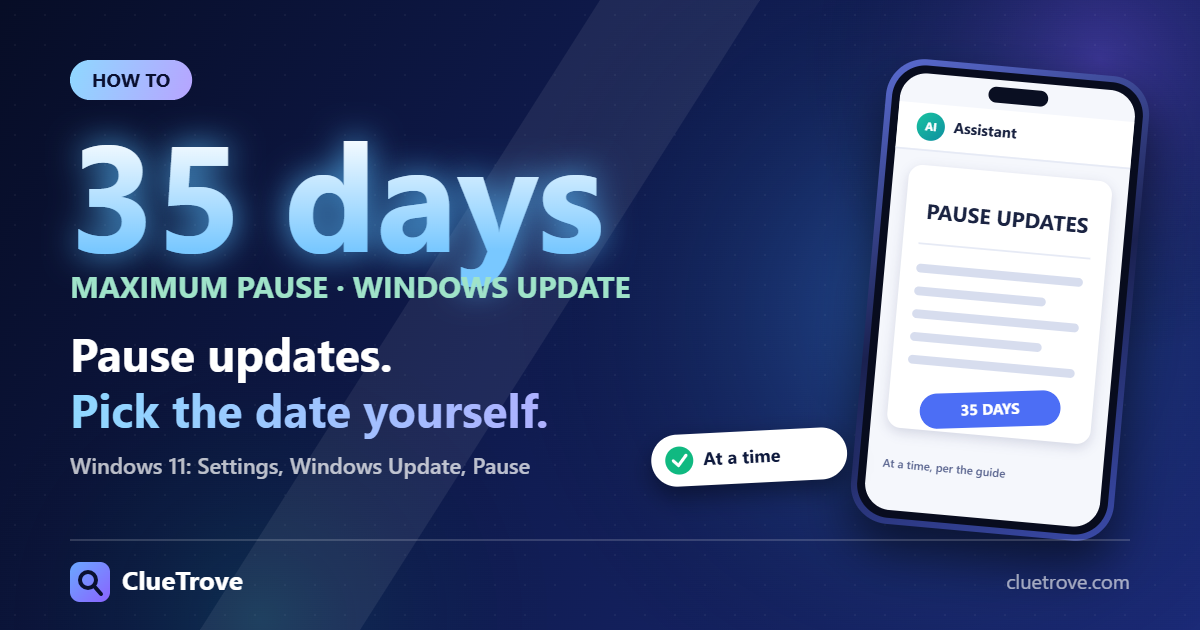
You can pause Windows updates for up to 35 days at a time. On Windows 11, open Start, Settings, Windows Update, and select Pick a date on the Pause updates control. Microsoft documents no supported way to stop updates for good.
Microsoft’s support page says you can pause “for up to 35 days from the current date.” The “1 to 5 weeks” pause that circulates online belongs to Microsoft Store app updates, not Windows Update.
The short answer
- Windows 11: Start, Settings, Windows Update, Pause updates, Pick a date.
- Maximum: up to 35 days from the current date.
- Windows 10: Settings, Update & Security, Windows Update, then “Pause updates for 7 days” or Advanced options.
- Permanent stop: not documented as a supported option.
How do you pause updates on Windows 11?
- Open Start, then Settings, then Windows Update.
- On the Pause updates control, select Pick a date.
The calendar only shows dates inside the 35-day window, so you cannot pick a longer pause by mistake.
How do you extend a pause?
Select a new end date on the Pause updates calendar. The new date can be up to 35 days from today, and the time you already paused is not added on. You can extend again later under the same limit.
How do you pause updates on Windows 10?
Go to Settings, Update & Security, Windows Update and select “Pause updates for 7 days.” Or open Advanced options and use the Pause updates dropdown to choose a resume date. Windows 10 support ended on 14 October 2025, so check what that means before you rely on a long delay.
What happens when the pause ends?
- Updates resume automatically. Windows checks for, downloads and installs the latest updates.
- Updates in progress are canceled when you pause.
- Updates that need a restart wait until the pause ends, and the device will not restart on its own to finish an install.
- You can resume manually at any time.
This means a pause delays an update; it does not skip one. When the date arrives, you get the latest updates in one go, so expect a longer install and a restart.
Can you stop Windows updates permanently?
No supported option exists, and Microsoft says pausing is not permanent. Skipping security updates leaves your PC exposed. Treat a pause as a way to pick a better moment, such as after a deadline or before a trip, and not as a way to avoid updates.
Who should pause, and who should not?
- Pause if you are mid-project, presenting soon, or traveling on a slow connection.
- Do not pause just to avoid restarts. Set active hours or schedule the restart instead.
- Set a reminder for the end date, so the pause does not lapse in the middle of your work.
Mistakes to avoid
- Expecting a pause to last longer than 35 days. Extending resets the clock to 35 days from today.
- Pausing with an update half installed. In-progress updates are canceled.
- Mixing up Microsoft Store app updates with Windows Update. The “1 to 5 weeks” range belongs to the Store.
Questions and answers
How do I stop Windows from updating?
You can pause for up to 35 days. Microsoft does not document a permanent stop.
How long can I pause Windows 11 updates?
Up to 35 days from the current date, and you can extend within that limit.
Is 1 to 5 weeks the Windows Update pause?
No. Microsoft’s Windows Update page says up to 35 days. The 1 to 5 weeks pause is for Microsoft Store app updates.
Will my PC restart during a pause?
No. The device will not restart on its own to finish an install while paused.
Can I end a pause early?
Yes. You can resume manually at any time.
Related reading
- Windows 10 End of Support and How to Get Extended Updates
- Pause Social Security Retirement Benefits: Up to 8% a Year
- How to Download the Windows 11 ISO and Check Requirements
Sources
Facts last checked on 20 October 2026; the Microsoft page shows no date.