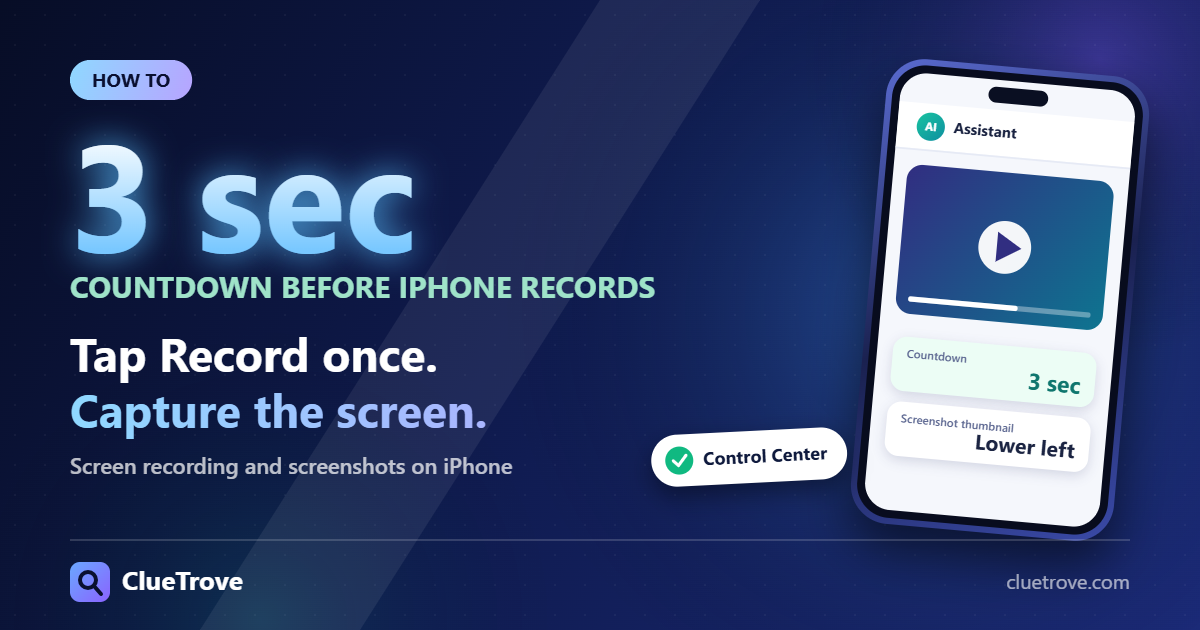
To screen record, open Control Center, tap the gray Record button and wait for the three-second countdown. To screenshot on a Face ID iPhone, press the Side button and Volume Up together and release quickly.
One limit trips people up. Apple’s screen recording article (published 14 September 2026) says: “You can’t record your screen and use screen mirroring at the same time.”
The short answer
- Screen record: Control Center, gray Record button, 3-second countdown.
- With sound: press and hold Record, then tap the Microphone button.
- Screenshot (Face ID): Side button plus Volume Up.
- Where files go: recordings land in Photos per Apple’s page. Screenshots go to the Screenshots album.
How do I screen record on iPhone?
- Swipe down from the top-right corner to open Control Center.
- Tap the gray Record button and wait for the 3-second countdown.
- Exit Control Center to start recording.
- To stop, tap the red indicator at the top of the screen, then Stop. You can also tap the red Record button in Control Center.
- Find the recording in Photos.
Use the countdown. Three seconds is enough to close Control Center, so the first frames of your video are not the menu itself.
How do I screen record with sound on iPhone?
Press and hold the Record button in Control Center first. Tap the Microphone button to turn it on, then tap Start Recording. Do this before you start; the microphone setting is in that pop-up.
What if I cannot find the Record button?
Apple says the Record button must be in Control Center. If it is missing, add it from Settings, Control Center. Screen recording is unavailable while screen mirroring is active, so stop mirroring first.
How do I take a screenshot on iPhone?
| iPhone type | Buttons (Apple) |
|---|---|
| Face ID models | Press the Side button and Volume Up together, then release quickly |
| Touch ID with a side button | Side button and Home button |
| Touch ID with a top button | Top button and Home button |
On iOS 26 the screenshot opens with editing and sharing tools. On iOS 18 or earlier a thumbnail appears at the lower left for a moment. Release the buttons quickly; holding them too long can trigger something else.
Which should you use?
- Screenshot: for a single screen, such as a receipt, a setting or an error message.
- Screen recording: for steps in a sequence, such as a bug that needs three taps to show, or a how-to for a relative.
After you record, Video Trimmer cuts the part you need, and Video to MP3 saves only the sound as an MP3. Both work on your device.
Questions and answers
How do I screen record on iPhone?
Control Center, Record, wait for the countdown, then stop from the red indicator.
Why is my screen recording not working?
Check that you are not using screen mirroring, since Apple says you cannot do both at once. Also confirm the Record button was added in Settings, Control Center.
How do I screenshot on iPhone?
Side button plus Volume Up on Face ID models. Older models use the Home button with the Side or Top button.
How do I record with sound?
Press and hold Record, tap the Microphone button, then tap Start Recording.
Where is my screen recording saved?
In Photos.
Related reading
- How to Back Up an Android Phone, Screenshot, Screen Record
- How to Screen Record on Mac, Plus Shortcuts and Force Quit
- How to Screenshot on Windows: Snipping Tool and Shortcuts
Sources
Facts last checked on 20 October 2026 against Apple pages dated September and October 2026.