Open ClueTrove’s Image Compressor for JPG, PNG and WebP files, choose up to 20 images, pick JPG or WebP and a quality level, then compress and download. With the defaults, our test photo shrank 60% and the transparent PNG shrank 95%.
The tool page states that files are processed in the browser and are not uploaded. The page you are reading explains the settings, shows our measured results, and names the cases where a file does not get smaller.
Steps to compress images in your browser
These steps use the labels shown in the Image Compressor.
- Open the Image Compressor page.
- Select Choose images and pick up to 20 JPG, PNG or WebP files.
- Under Output format, select JPG (smallest for photos) or WebP (often smaller; keeps transparency).
- Set the Quality slider. It runs from 40 to 95 percent in steps of 5, and the default is 80 percent.
- Under Maximum width or height, keep Keep original or choose 3840 px, 2560 px, 1920 px or 1280 px.
- Select Compress images.
- Check the label next to each file. It shows a percentage such as “60% smaller”, or “Not smaller; keep the original”.
- Select Download all to save the results.
- Select Start over to compress a new batch.
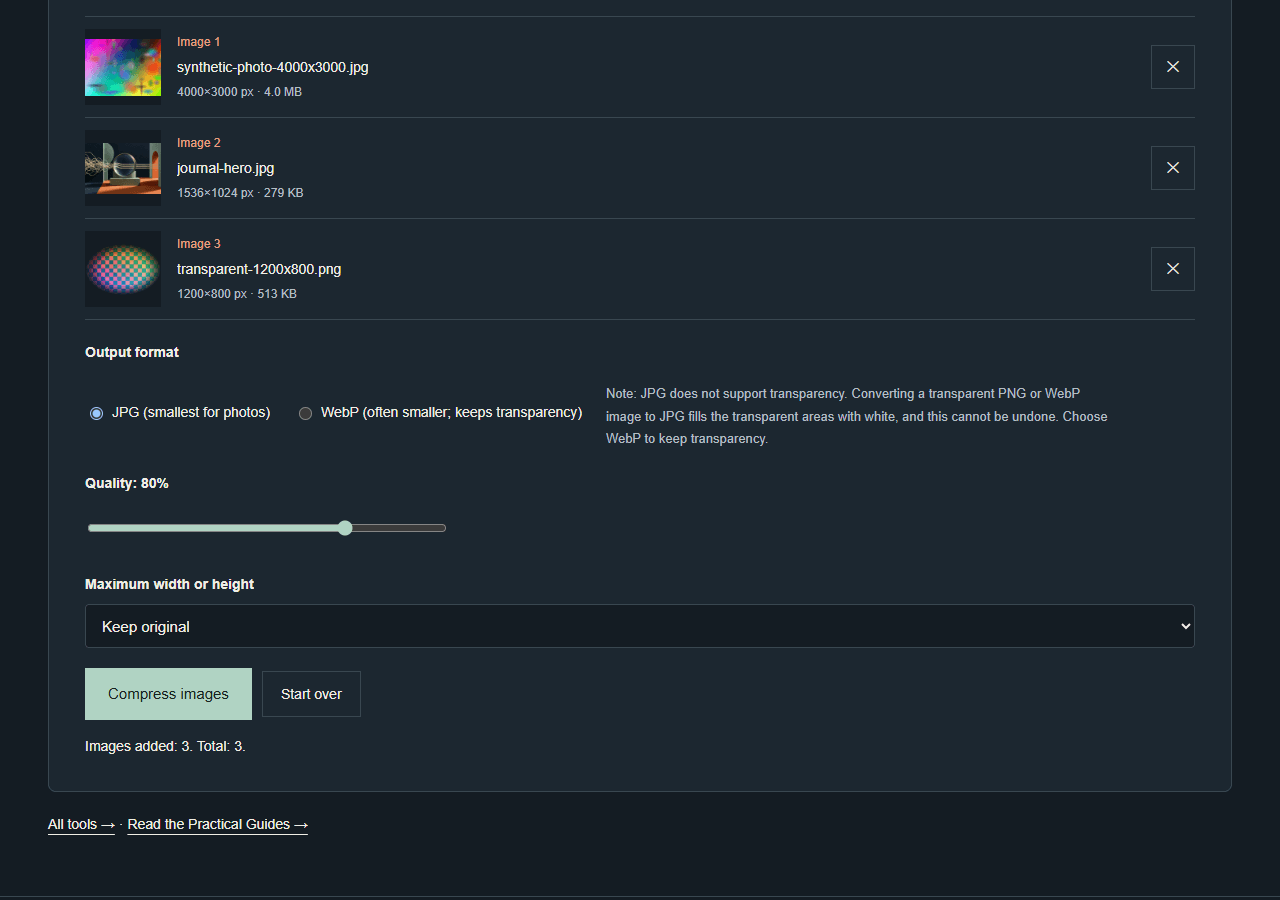
Before compressing, the tool lists each selected image with its dimensions and size, plus the output format choice, a quality slider at 80 percent, a size limit menu set to Keep original and a Compress images button. That was the view in a local test build with three images selected.
Which format and quality should you pick?
The advice below draws on our own test, described under “What we tested” further down.
- Photos: JPG at the default quality of 80 is a reasonable starting point, but compare it with WebP. In our test, JPG was smaller than WebP for the noisy synthetic photo at full size. At quality 80, WebP was smaller than JPG for the same photo at every reduced size we tested (3840 px and below). That synthetic photo is not typical of phone photos, so try both formats on your own file.
- Illustrations and graphics: try WebP. In our test, WebP was smaller than JPG on the illustration at all four quality levels we report (40, 60, 80 and 95). According to Google’s WebP FAQ, WebP supports both lossy and lossless compression, and you can adjust the lossy compression to trade file size against image quality. Google also states on its WebP overview page that WebP lossless images are 26% smaller than PNGs, and that WebP lossy images are 25–34% smaller than comparable JPEGs at equivalent SSIM quality index. These are Google’s own published figures, not a guarantee for any single image.
- Images with transparency: choose WebP. JPG output fills transparent areas with white.
- Simple PNGs with few colors: watch the result. Google’s WebP FAQ warns that converting a low-color PNG to lossy WebP, or to lossy JPEG, can produce a larger file than the original. PNG itself is a lossless format: the W3C PNG Specification defines lossless compression as compression that lets the original data be rebuilt exactly, bit for bit. If you need an exact copy, keep the original file. The Image Compressor outputs only JPG or WebP.
- Images for a web page or email: if you do not need full resolution, a smaller Maximum width or height such as 1920 px cut file size sharply in our test.
- High quality settings: quality 95 made the output larger than the input in three of our four quality tests, so raise quality only when you need it.

Compare the result with the original before you replace anything. We did not measure visual quality, so judge by eye.
Mistakes to avoid
- Setting quality to 95 and expecting a smaller file. Three of four test outputs grew.
- Converting a transparent PNG to JPG. The transparent areas turn white, and this cannot be undone.
- Replacing your original before checking the label. A file marked “Not smaller; keep the original” is not worth swapping in.
- Expecting to keep location data. Compression removes EXIF data such as location and camera model.
How can a web page shrink an image on your device?
When you compress images on a website, you may wonder whether your photo leaves your computer. Browsers include features that let a page do this work locally.
- Reading the file: the FileReader interface lets a web page read files on your computer. It can only read files you have explicitly selected, through a file picker or by drag and drop. It cannot read a file by its path on your file system.
- Making the smaller file: the canvas toBlob() method creates file data from an image drawn on a canvas, and the page can choose the output format and quality. The quality value runs from 0 to 1 and applies to lossy formats such as JPEG and WebP. If the value is missing or out of range, the browser uses its own default.
- Format support: browsers must support PNG output from toBlob(), and many also support JPEG and WebP. If a requested format is missing or unsupported, the browser outputs PNG instead. MDN labels toBlob() “Baseline Widely available” and says it has worked across browsers since January 2020.
These browser features describe what a page is able to do. They do not prove that a given website never sends your file anywhere. If you use Chrome and want to watch what a page sends, the Chrome DevTools Network panel records network requests while DevTools is open. Clicking a request shows tabs such as Payload, which lists its query string parameters and form data. That is a useful way to observe activity, but an empty list is not proof that a file was never sent.
What we tested
The results below come from ClueTrove’s own test of its Image Compressor in a local build, run on 2026-10-05. The test used build 1.3.0 (tool code as in 1.2.0). The tool script compress-image.js is byte-identical in the current build 1.3.4. The environment was Microsoft Edge 154.0.4258.48 (headless, Windows) on a local copy of the tools build. Six headline outputs re-run in Chrome 153.0.8010.54 were byte-identical. The deployed site was not tested. The test files were synthetic or project-owned images, so the ratios on the noisy synthetic photo are not typical of phone photos. Your own files can give different results.
Default settings
With the defaults (JPG, quality 80, Keep original):
- A synthetic 4000×3000 photo-like JPEG went from 4,186,767 to 1,677,135 bytes (−59.9%, shown as “60% smaller”).
- A project-owned 1536×1024 illustration saved as JPEG went from 285,488 to 174,119 bytes (−39.0%, “39% smaller”).
- A synthetic 1200×800 transparent PNG went from 525,382 to 25,709 bytes (−95.1%, “95% smaller”).
The status line read “Done: 3 images. Size before 4.8 MB, after 1.8 MB.” The whole batch fell by well over half.
How quality changed file size
Both inputs used Keep original. The synthetic noisy 4000×3000 photo started at 4,186,767 bytes, and the 1536×1024 illustration saved as JPEG started at 285,488 bytes.
| Input and format | Quality 40 | Quality 60 | Quality 80 | Quality 95 |
|---|---|---|---|---|
| Photo, JPG | 510,448 (−87.8%) | 868,830 (−79.2%) | 1,677,135 (−59.9%) | 5,087,352 (+21.5%) |
| Photo, WebP | 603,464 (−85.6%) | 1,169,556 (−72.1%) | 2,259,488 (−46.0%) | 5,302,026 (+26.6%) |
| Illustration, JPG | 89,370 (−68.7%) | 117,984 (−58.7%) | 174,119 (−39.0%) | 335,357 (+17.5%) |
| Illustration, WebP | 54,540 (−80.9%) | 74,578 (−73.9%) | 114,256 (−60.0%) | 267,492 (−6.3%) |
Sizes are in bytes. At quality 95, three of the four outputs were larger than the input. The illustration as WebP was the exception, at −6.3%.
How the maximum size option changed file size
On the synthetic photo at quality 80:
- Keep original (4000×3000): JPG 1,677,135 bytes, WebP 2,259,488 bytes.
- 3840 px (3840×2880): JPG 1,373,121 bytes, WebP 1,074,628 bytes.
- 2560 px (2560×1920): JPG 550,462 bytes, WebP 470,948 bytes.
- 1920 px (1920×1440): JPG 255,235 bytes, WebP 142,004 bytes.
- 1280 px (1280×960): JPG 121,236 bytes, WebP 68,958 bytes.
JPG compared with WebP, and speed
WebP was not always smaller than JPG. At quality 80 on the noisy synthetic photo, WebP was larger (2,259,488 vs 1,677,135 bytes). On the illustration, WebP was smaller (114,256 vs 174,119 bytes). WebP was also slower to encode. The 12-megapixel photo with Keep original took a median 747 ms as JPG and 4,834 ms as WebP. The 1536×1024 illustration took a median 108 ms as JPG and 507 ms as WebP. Treat these timings as rough. They come from a small number of runs on one machine and are indicative only.
When the file did not get smaller
Out of 480 runs, 61 produced a file as large as or larger than the input. The per-input counts below account for 55 of those 61 runs, so this list is partial. It includes:
- The 64×48, 16×16 and 1×1 pixel images: 12 of 12 runs each.
- The transparent WebP: 8 of 12.
- A re-encoded WebP illustration: 5 of 12.
- The 1536×1024 illustration saved as JPEG: 4 of 120.
- The synthetic photo: 2 of 120.
The likely causes are inputs that were already tiny or already efficiently compressed, but these causes were not isolated in separate experiments. The tool labels such files “Not smaller; keep the original”. It still offers them for download and counts them in the before and after total.
Transparency, EXIF and very large images
- Transparency: converting the transparent PNG to JPG replaced the transparent areas with white (corner pixel RGBA 255,255,255,255). The tool showed the note “transparency replaced by a white background”. With WebP output the alpha channel was kept (corner alpha 0). While JPG is selected, the tool warns: “Converting a transparent PNG or WebP image to JPG fills the transparent areas with white, and this cannot be undone.”
- EXIF: a test image stored as 1200×800 with EXIF orientation 6 was listed as 800×1200. The outputs were 800×1200 with the pixels rotated upright, and the EXIF bytes, including the test Make value, were absent from the output. The tool states: “Compression removes EXIF data such as location and camera model.”
- Very large images: a 5000×4000 pixel (20 megapixel) JPEG with Keep original came out as 4579×3664 pixels with the note “resized to fit the browser’s memory”. With the 3840 px option it came out as 3840×3072 with no note. In other words, the tool scales such images down to about 16.8 megapixels.
Files the tool refused
GIF, AVIF, SVG and BMP files were refused with “not a valid JPG, PNG or WebP image”. So were a text file named .jpg, a JPEG header followed by garbage, and a JPEG cut in half. The 21st image in a batch was refused (“over the 20-image limit”). A 28,521,477-byte PNG was refused (“larger than 25 MB”), and so was a 56-megapixel PNG (“larger than 50 megapixels”). A PNG renamed .jpg was accepted, because the tool reads the type from the file bytes rather than the extension.
We also ran a wider check of 480 runs. It covered 12 quality levels, 5 maximum-size options and 2 output formats on 3 inputs, plus corner cases on 10 more inputs. Every output decoded, had the requested format, and matched the dimensions and percentage shown in the tool. The three default-setting outputs were also checked in two independent decoders. In all 150 applicable runs, the longest side equalled the chosen maximum. Output size never decreased when quality was raised.
What are the tool’s limits?
- Up to 20 images at a time, 25 MB per image (the tool counts 1 MB as 1,048,576 bytes), and at most 50 megapixels per image.
- Only JPG, PNG or WebP files are accepted, recognized from the file contents.
- Quality can be set from 40 to 95 percent in steps of 5 (default 80).
- The maximum width or height can be Keep original, 3840, 2560, 1920 or 1280 pixels.
- The output is JPG or WebP. WebP is offered only when the browser can encode it.
- Images larger than about 16.8 megapixels are scaled down automatically even with Keep original, and the tool prints a note.
- Compression removes EXIF data such as location and camera model.
- A transparent PNG or WebP converted to JPG gets a white background.
- The result is sometimes not smaller than the original, and the tool says so for each file.
- Files are processed in the browser and are not uploaded, according to the tool page.
We did not test these:
- The deployed site at tools.cluetrove.com. Only a local copy of the build was tested.
- Firefox, Safari, real phones and tablets, the Arabic page, and drag and drop.
- Perceptual image quality (no similarity metric was computed), real phone photos, HEIC and animated images.
- The exact boundaries of the 25 MB and 50 megapixel limits.
What to do next
- Start with the defaults: JPG, quality 80, Keep original. Read the label on each file.
- For a web page or email, set Maximum width or height to 1920 px or lower.
- For illustrations or transparency, switch to WebP and compare the size.
- Keep the original of any file marked “Not smaller; keep the original”, then download the rest with Download all.
Related tools
When you are ready to make your images smaller, open the ClueTrove Image Compressor. If you then need to put the compressed photos into one document, the JPG to PDF converter turns images into a PDF, and Merge PDF combines several PDFs. You can browse everything on the ClueTrove tools page.
Questions and answers
Does the Image Compressor upload my images?
The tool page states that files are processed in the browser and are not uploaded. We tested a local build, not the deployed site. In Chrome, you can watch requests in the DevTools Network panel, but that is not proof a file was never sent.
Should I choose JPG or WebP?
Try WebP for illustrations or images with transparency. For photos, compare both. In our test, JPG was smaller than WebP for a noisy synthetic photo at full size. At quality 80, WebP was smaller once that photo was resized to 3840 px or below. That photo is not typical of phone photos, so check both on your own file.
Why did my compressed image get bigger?
Tiny or already efficiently compressed images may not shrink, and high quality settings such as 95 can enlarge files. The tool labels these files “Not smaller; keep the original”. In that case, keep using your original file.
Does compressing remove location data?
The tool states that compression removes EXIF data such as location and camera model. In our test, the EXIF bytes were absent from the output and the image was rotated upright.
What quality setting should I use?
The default of 80 percent is a reasonable starting point. Lower values made smaller files in our tests. Check the result by eye, because we did not measure visual quality.